Faxing Form 5472 to the IRS: Fixing the XFA/XML PDF Merge Error

Key Takeaways
- IRS PDFs use XFA (XML Forms Architecture), which can't be merged with regular PDFs in the normal way
- Adobe Acrobat's "cannot insert pages from this form" error means XFA conflict, not a permission issue
- Flattening the form (Save As → Optimized PDF) is the cleanest fix — preserves text selectability
- Exporting pages as 300 DPI images then re-combining is the universal fallback when flattening fails
- Either solution produces fax-ready output that the IRS processing center accepts identically to the original
The Problem: Combining IRS PDFs Throws an Adobe Error
When you fax Form 5472 to the IRS, the package usually has three pieces: the pro forma Form 1120 cover, Form 5472 itself, and any attachments describing reportable transactions. Most fax services need one combined PDF. So you open Adobe Acrobat, click Organize Pages, and try to drag the three files together. Then Acrobat hits you with: "You cannot insert pages from this form into another PDF file."
The error is misleading. It sounds like a permission problem, but it's actually a format problem. The IRS PDFs use a technology called XFA (XML Forms Architecture), and XFA-based forms can't be merged with regular PDFs the way most files can.
What XFA Is and Why the IRS Uses It
XFA is an Adobe-developed form technology that embeds an XML layer into a PDF. The XML defines input fields, validation rules, calculations, and dropdown options. When you open an XFA-based PDF, Acrobat reads the XML and renders an interactive form — that's why some IRS forms restrict what you can type in certain fields (like only accepting two-digit state codes, or auto-calculating totals).
For the IRS, XFA has a clear benefit: it reduces input errors. A field that only accepts dates in MM/DD/YYYY format will reject "July 15" before it ever reaches the processing center. The cost is a structural incompatibility — XFA PDFs are technically different documents from regular PDFs, and most PDF tools refuse to merge them with anything else.
Solution 1: Flatten the XFA Form
The cleanest fix is to flatten the XFA form. Flattening converts the dynamic XML form into a static PDF that contains only the rendered output — the input fields become regular text, and the XML layer is discarded. After flattening, the PDF behaves like any other PDF and can be merged freely.
In Adobe Acrobat: open the IRS form, fill in all the fields, then go to File → Save As Other → Optimized PDF (or use the Print → Save as PDF trick on Mac, which also flattens). Verify the resulting file is no longer an interactive form. Now you can drag it into Organize Pages with other PDFs and combine them. The visual content is preserved exactly — the IRS examiner sees the same text in the same positions.
Solution 2: Export Each Page as a High-Resolution Image
If flattening doesn't work (some XFA forms are stubborn), the fallback is to export each page to a high-resolution PNG or JPEG image, then assemble the images into a new PDF. The visual quality stays high — 300 DPI exports are indistinguishable from the original at fax resolution — and there's zero XFA content to conflict with anything.
In Acrobat: File → Export To → Image → PNG. Choose 300 DPI or higher. Repeat for each page. Then File → Create → PDF from Multiple Files, and add all the images in order. The output is a regular image-based PDF that can be combined with anything. The only downside is that the text is no longer selectable in the output (it's rasterized) — but for faxing, that doesn't matter, because faxes are images regardless.
Which Solution to Use When
Flatten when possible — it preserves text selectability and produces smaller files. The IRS examiner can copy values out of a flattened PDF if they want, which speeds processing slightly.
Use image export when flattening fails or when you don't have Adobe Acrobat Pro (the flatten command is Pro-only on some versions). It always works, and the resulting fax is identical in quality to a flattened version. The combined PDF file size will be larger — typically 5–15 MB instead of 1–3 MB for a typical 5472 package — but fax services don't care about that.
Frequently Asked Questions
Does flattening change what the IRS sees?
No. Flattening just removes the interactive layer — the visual content (text, fields, your answers) stays identical. The IRS examiner sees the same form, just without the dropdown menus and field validation.
Can I do this on Mac without Adobe Acrobat Pro?
Yes. On macOS, you can Print → Save as PDF (or Preview's Export As PDF) — both flatten the form automatically. The Acrobat-specific Optimize command is not the only path.
Why does the IRS still use XFA when it causes these problems?
XFA reduces input errors at the IRS processing center because it validates fields client-side before submission. The compatibility headache is a known trade-off the IRS has chosen for data quality reasons.
IRS Form 5472 Instructions
Official IRS source on irs.gov
Listen on Spotify
Money & Tax Talk with Rippa — 5/5 rating
Never miss an IRS deadline
Get free email reminders for Form 5472, state annual reports, quarterly estimated tax, and OBBBA rule changes — built for foreign-owned LLC owners. No spam. Unsubscribe anytime.
We respect your privacy. No spam, ever.
Need to file your foreign-owned LLC return?
Skip the CPA bill. Our guided wizard builds your IRS-ready filing package, step by step.
Includes its walkthrough video pack
Start filing →
Ask the AI tools, free
Tax Return Drafter, Catch-Up Planner, Form Reviewer, IRS Notice Decoder — purpose-built AI tools, no signup needed.
Free tier · BYOK Anthropic/OpenAI for power use
Browse tools →
Starting your foreign-owned LLC?
Vetted partners we use ourselves: doola & Firstbase for formation, Mercury for banking, Alohi for IRS faxing.
No-fluff recommendations, no Northwest
See partners →
More on Form 5472 & Foreign-Owned LLCs
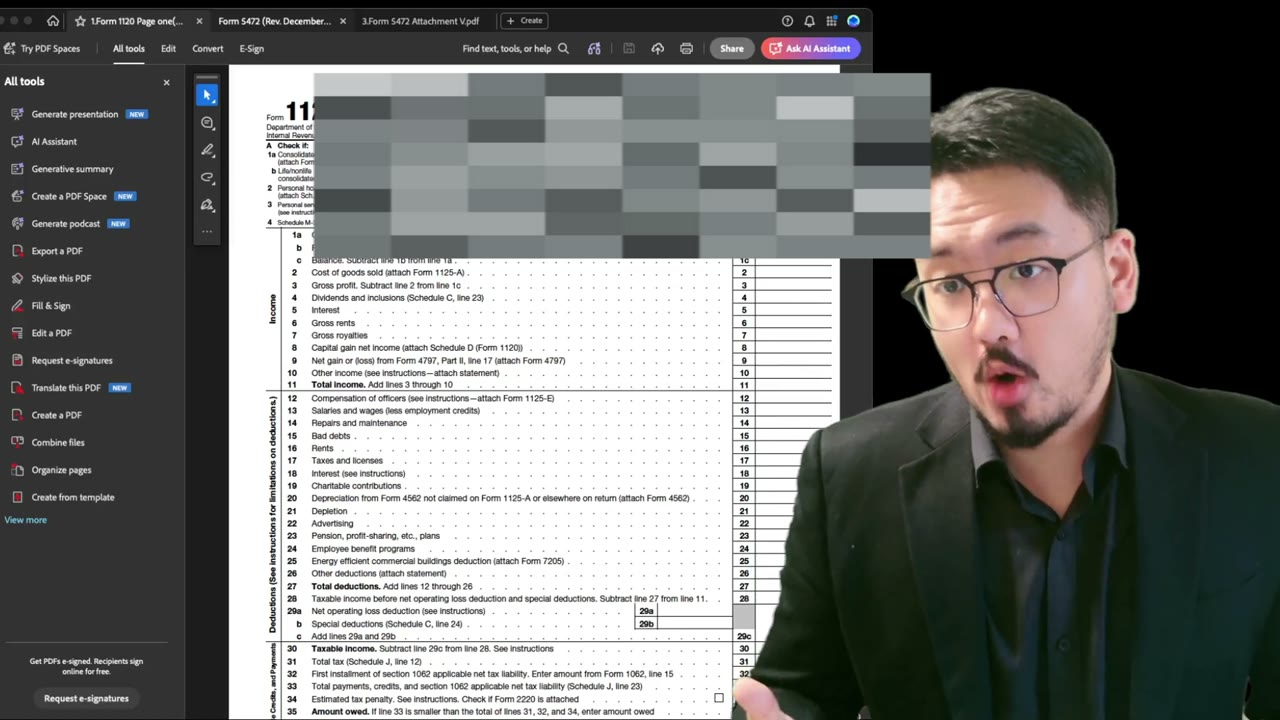 3:12
3:12Faxing Form 5472: XFA Fix Solution 1 — Export Pages as Images and Rebuild the PDF
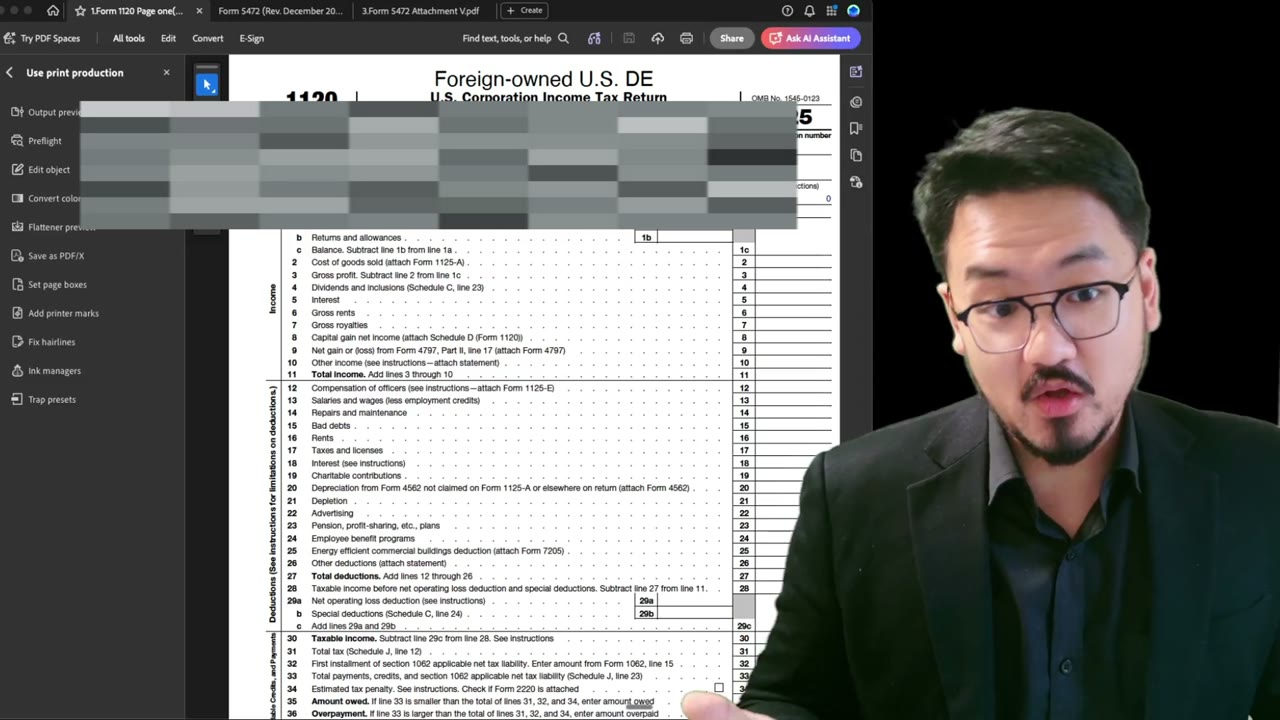 1:55
1:55Faxing Form 5472: XFA Fix Solution 2 — Flatten via Acrobat's Preflight Tool
 5:45
5:45Faxing Form 5472: Which Send-Dialog Settings to Enable (and Why HD Is a Trap)
 2:24
2:24Faxing Form 5472: Sending the Combined PDF via a Web Fax Service (fax.plus)
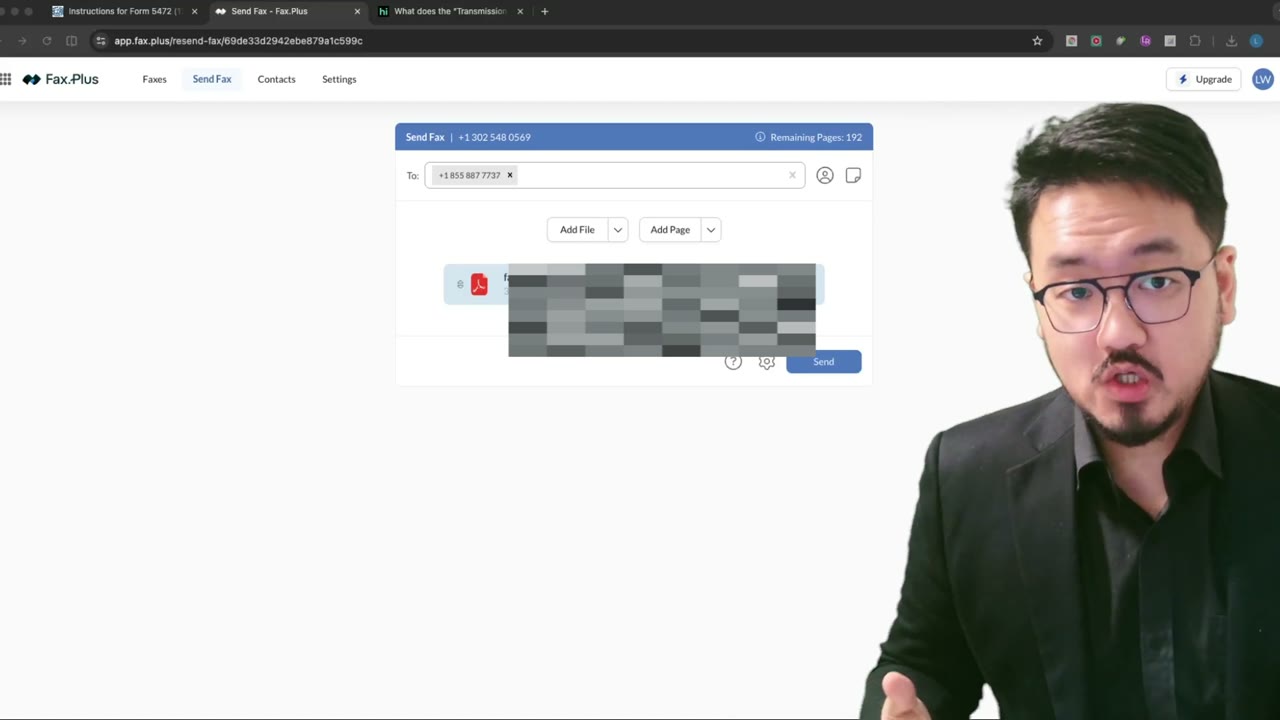 0:48
0:48Faxing Form 5472: Why "In Transmission" Isn't "Sent" — Verifying Delivery
 2:05
2:05